AWS Step-by-Step
Working With the Next-Generation Resilience Hub, Part 2
In the previous article in this series, I showed you how to create a resilience policy and how to define a service. Now, I want to continue the discussion by walking you through the process of setting up assessments and reports.
To get started, let's take a look at failure mode assessments. When you perform a failure mode assessment, AWS uses AI to identify potential failure points such as misconfigurations, shares fate scenarios, and single points of failure. To get started, go to the Services tab and then click on the service that you created earlier. When you do, you will be taken into the service page, which you can see in Figure 1.
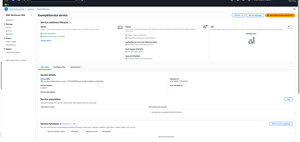 [Click on image for larger view.] Figure 1: Click the Run Failure Mode Assessment Button (source: AWS).
As you look at the screen capture above, you will notice the Run Failure Mode Assessment button, shown in the upper, right corner of the screen. Click this button and you will see a warning message telling you that running assessments incurs charges. As of the time when I wrote this, however, the first two assessments are free, assuming that your service includes fewer than 150 resources. Click the Start Assessment button and the failure mode assessment will begin. It is worth noting that this process can take a long time to complete.
When the test completes, the test results will appear within the Failure Modes tab in the Assess section. It is worth noting that all of the failure mode details are AI generated based on your service configuration. As such, Amazon advises you to verify all of the relevant information before taking action.
The Failure Modes tab is a good option for getting a high-level overview of failure modes. Here, you can see a list of all of the failure modes across your environment and you can filter the list based on system, service, status, severity, and failure category.
If you would rather focus on the failures that are specific to a particular service, then the best way to do so is to click on the Services tab, followed by the service that you want to examine. When you reach this screen, scroll down to where you see the three tabs (Overview, Configuration, and Assessment). Select the Assessment tab and you will see a list of failure modes. As you address the various failure modes, you can mark them as resolved.
As previously noted, because the list of failure modes is AI generated, it may not always be 100% accurate. That being said, there are a couple of things that you can do to improve the failure mode assessment accuracy.
The first thing that you can do is to review the service topology to make sure that it is accurate. Remember, a service in this context is a collection of resources. If the AWS Resiliency Hub has failed to identify all of the resources that should be associated with the service, then the fact that certain resources are missing will likely lead to an inaccurate failure mode assessment. To see what resources are being considered during the assessment, click on the Service Topology button in the upper, right portion of the service page.
One more thing that you can do to improve the usefulness of failure mode assessments is to use failure mode guidance. Failure mode guidance involves adding assertions that can either be created by AI or by you. An assertion is essentially just a strong statement telling the Resiliency hub about the service. For example, you might tell AWS that your cluster consists of three instances spread across two different availability zones.
Once you finish performing your assessments, you can click on the Assessment Reports tab, located within the Report section, to see a list of all of the assessments that you have performed.
Another way to get a big picture view of your organization's resilience is to click on the Dashboard tab, which opens the Resilience Dashboard. As you can see in Figure 2, this dashboard shows you how many services you are monitoring, along with the number of failure modes and dependencies that you are tracking. You can filter all of these lists based on various criteria. If you scroll down to the bottom of the dashboard, you will find a Service Assessment Tracking section that lets you track failure modes across services.
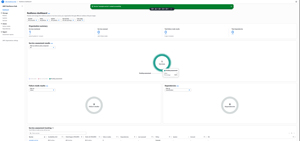 [Click on image for larger view.] Figure 2: The AWS Resilience Hub Provides You With an Overview of the Services That You Have Defined (source: AWS).
About the Author
Brien Posey is a 22-time Microsoft MVP with decades of IT experience. As a freelance writer, Posey has written thousands of articles and contributed to several dozen books on a wide variety of IT topics. Prior to going freelance, Posey was a CIO for a national chain of hospitals and health care facilities. He has also served as a network administrator for some of the country's largest insurance companies and for the Department of Defense at Fort Knox. In addition to his continued work in IT, Posey has spent the last several years actively training as a commercial scientist-astronaut candidate in preparation to fly on a mission to study polar mesospheric clouds from space. You can follow his spaceflight training on his Web site.