AWS Step-by-Step
Automatically Rotating AWS Secrets, Part 1
Secret rotation can go a long way toward helping to keep AWS resources secure. Even so, some admins avoid key rotation because of concerns about having to build complex and costly infrastructure and because of an assumption that using automatic secret rotation requires code to be written. However, thanks to pre-built blueprints within AWS, key rotation can be largely plug and play. The example that I will be showing you requires you to write a few lines of PowerShell code, but there is no real code development involved.
We will start out by building an EC2 instance and connecting that instance to an RDS SQL database. From there, I will show you how to store a secret in the AWS Secrets Manager, how to update EC2 to use the secret, and how to enable automatic rotation for the secret. So, let's go ahead and get started.
Create an IAM Role
The first step in the setup process is to create an IAM role that will allow an EC2 instance to interact with the Secrets Manager. To create the required role, open the IAM console, select the Roles tab, and then click on Create Role. When prompted, set the Trusted Entity Type to AWS Service. Next, choose EC2 from the Use Case list and then click Next.
At this point, you will be taken to the Add Permissions screen. At a minimum, you will need to attach the SecretsManagerReadWrite permission, as shown in Figure 1. If you are planning on using Session Manager, then you will also want to add the AmazonSSManagedInstanceCore permission.
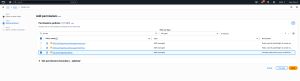 [Click on image for larger view.] Figure 1: Add the SecretsManagerReadWrite permission to the role.
Click Next, and you will be taken to a screen that prompts you to provide a name for the role. Be sure to use a meaningful name and to apply any applicable tags. Click the Create Role button to create the new role.
Create an EC2 Instance
The next step in the process is to create an EC2 instance. For the purposes of this article series, I will be creating a Windows instance, although you can create a Linux instance if you prefer.
To get started, open the EC2 console and click Launch Instance. Choose a Windows Server AMI and set the instance type to T3.Medium or larger. You will also need to choose a key pair to associate with the instance. While you are at it, choose the appropriate VPC and subnet. It's also a good idea to enable RDP access to the instance.
When you are done, you will need to expand the Advanced Details section, click on the IAM Instance Profile option, and select the role that you just created. In my case, the role was called EC2-Secrets, but you should use the name that is applicable to your own environment. Click the Launch Instance button to create the instance.
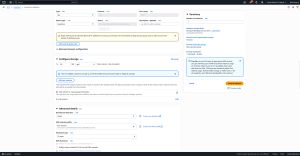 [Click on image for larger view.] Figure 2: Make sure to allow RDP access and to configure the IAM Instance Profile to use the role that you created.
Create an RDS SQL Database
The next step in the configuration process is going to be to create an RDS SQL database.To do so, open the Aurora and RDS console and click the Create Database button. When prompted, choose the Microsoft SQL Server option. Set the Database Management Type to Amazon RDS and set the Edition to SQL Server Express Edition, as shown in Figure 3.
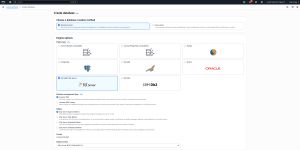 [Click on image for larger view.] Figure 3: Choose the Microsoft SQL Server option.
For right now, set the Credentials Management option to Self Managed and then provide a username and a password that can be used for database authentication. Verify that the database is going to be placed into the same VPC as your EC2 instance. Additionally, you will need to go to the Connectivity section and choose the option to choose a connection to an EC2 compute resource (be sure to select your instance), as shown in Figure 4. When you are done, click Create Database.
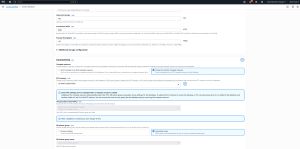 [Click on image for larger view.] Figure 4: Be sure to connect the database to an EC2 compute resource.
When the database creation process completes, click the View Connection Details button and make note of the endpoint name. You are going to need to know the endpoint name, the master username, and master password later on.
Testing Database Connectivity
The last thing that we need to do before delving into a discussion of secret rotation is to do a quick check to make sure that the EC2 instance is able to connect to the database. To do so, open your RDP client and connect to your instance. Once you have logged in, open PowerShell and enter the following commands (substituting your own server connectivity information):
Install-Module SQLServer -Force
$Server = " database-1.cdyqo1pnkdlm.us-east-1.rds.amazonaws.com
"
$Database = "master"
$User = "admin"
$Password = "Passw0rd123"

# Set connection string with TrustServerCertificate=true
$ConnStr = "Server=$Server;Database=$Database;User ID=$User;Password=$Password;TrustServerCertificate=True;Encrypt=True"

# Connect using .NET SqlConnection
$Conn = New-Object System.Data.SqlClient.SqlConnection
$Conn.ConnectionString = $connStr
$Conn.Open()

# Run a test query
$CMD = $conn.CreateCommand()
$CMD.CommandText = "SELECT GETDATE()"
$Result = $cmd.ExecuteScalar()

Write-Output "SQL Server returned: $Result"

$Conn.Close()
These commands should cause SQL Server to return the current date and time, as shown in Figure 5.
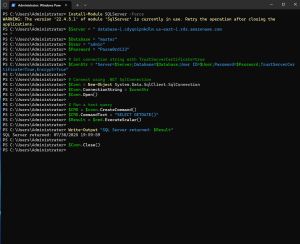 [Click on image for larger view.] Figure 5:The connection to SQL Server was successful.
Now that we have set up the necessary infrastructure and verified our ability to connect to SQL Server, it's time to begin implementing automatic key rotation. I will show you how in Part 2.
About the Author
Brien Posey is a 22-time Microsoft MVP with decades of IT experience. As a freelance writer, Posey has written thousands of articles and contributed to several dozen books on a wide variety of IT topics. Prior to going freelance, Posey was a CIO for a national chain of hospitals and health care facilities. He has also served as a network administrator for some of the country's largest insurance companies and for the Department of Defense at Fort Knox. In addition to his continued work in IT, Posey has spent the last several years actively training as a commercial scientist-astronaut candidate in preparation to fly on a mission to study polar mesospheric clouds from space. You can follow his spaceflight training on his Web site.