AWS Step-by-Step
Automatically Rotating AWS Secrets, Part 2
In the first part of this article series, I explained that Amazon makes it relatively easy to automatically rotate secrets, which can go a long way toward making your AWS resources more secure. So far, we have set up an EC2 Windows instance and a SQL Server . As it stands right now though, the SQL Server is equipped with a standard username and password. In this article, I want to show you how to force the SQL Server to use a secret, and how to attach the EC2 instance to the SQL Server once the secret is in use. Finally, I will show you how to automatically rotate that secret.
Storing a Secret in the Secret Manager
The next step in the configuration process is to store a secret in the Secrets Manager. As you may recall from Part 1 of this series, we initially configured the database to use a standard username and password. Therefore, we will start out by storing this credential set in the Secrets Manager.
To get started, open the Secrets Manager and then click the Store a New Secret button. This will cause AWS to open a screen that prompts you to choose the secret type. Since we are going to be storing a secret for an RDS database, choose the option labeled Credentials for Amazon RDS Database. Next, enter the username and password that is currently associated with your database and then select the database from the bottom of the screen, as shown in Figure 1.
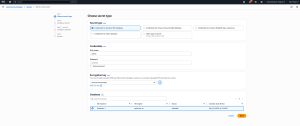 [Click on image for larger view.] Figure 1: Store your RDS database password in the AWS Secrets Manager..
Click Next, and you will be taken to the Configure Secret screen. Go ahead and enter a name and an optional description for the secret. Be sure to remember the name that you assigned, because you will need to reference it later on.
Click Next, and you will see the Configure Rotation screen. For right now, don't worry about setting up rotation. We will come back to rotation later on. Instead, just click Next to accept the defaults. Now, take a moment to review your secret settings and then click the Store button to store your secret.
Configure Your Instance to Use the Secret
In Part 1 of this series, I showed you how to use a series of PowerShell commands to test connectivity to the database. Now, we are going to do basically the same thing, but we are going to modify the commands so that they use the stored secret instead of using credentials that have been entered manually. The other thing that we are going to do is to turn these commands into a script.
To do so, open File Explorer and create a folder called C:\Scripts. Within that folder, create a new file called Test.ps1. Finally, open the Test.ps1 file and enter the commands listed below. Like before, you will need to substitute your own connection settings.
$SecretName = "SQL"
$Region = "us-east-1"

$Response = Get-SECSecretValue -SecretId $SecretName -Region $Region

$SecretObject = $Response.SecretString | ConvertFrom-Json
$User = $SecretObject.username
$Password = $SecretObject.password

$Server = “database-1.cdyqo1pnkdlm.us-east-1.rds.amazonaws.com"
$Database = "master"

# Set connection string with TrustServerCertificate=true
$ConnStr = "Server=$Server;Database=$Database;User ID=$User;Password=$Password;TrustServerCertificate=True;Encrypt=True"

# Connect using .NET SqlConnection
$Conn = New-Object System.Data.SqlClient.SqlConnection
$Conn.ConnectionString = $connStr
$Conn.Open()

# Run a test query
$CMD = $conn.CreateCommand()
$CMD.CommandText = "SELECT GETDATE()"
$Result = $cmd.ExecuteScalar()

Write-Output "SQL Server returned: $Result"

$Conn.Close()
Most of the code shown above is identical to the code used to test the database connection. The only difference is that we are using the Get-SECSecretValue cmdlet to extract the username and password from the Secrets Manager.
Save your script and then execute it within PowerShell. If you need to change the execution policy, you can do so by running this command:
Set-ExecutionPolicy Unrestricted
Before you execute the PowerShell script, you are going to need to install the AWS Tools Secrets Manager module. You can do so by running this command:
Install-Module AWS.Tools.SecretsManager -Force
Now, navigate to your Scripts folder and execute the PowerShell script. You should see a message like the one shown in Figure 2, indicating that SQL Server has returned the current date and time.
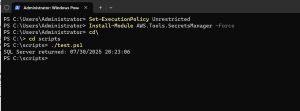 [Click on image for larger view.] Figure 2: The script ran successfully.
The last step in the process is to rotate the secret and then verify that the PowerShell script still works. To rotate the secret, go back to the Secrets Manager, click on your secret, and then select the Rotation tab. Click the Edit Rotation button and enable automatic rotation. Now all you have to do is to configure a rotation schedule and create a rotation function, as shown in Figure 3. When you are done, click Save. If the Rotate Immediately checkbox is selected, secret rotation will happen right away.
 [Click on image for larger view.] Figure 3: This is how you enable automatic rotation.
It can take up to two minutes for AWS to configure the secret rotation. That being the case, it's a good idea to wait for a couple of minutes before testing the secret rotation. The way that you test the rotation is by going back to your instance and running the PowerShell script once again. The script should run in the same way as before, even though the secret has changed.
About the Author
Brien Posey is a 22-time Microsoft MVP with decades of IT experience. As a freelance writer, Posey has written thousands of articles and contributed to several dozen books on a wide variety of IT topics. Prior to going freelance, Posey was a CIO for a national chain of hospitals and health care facilities. He has also served as a network administrator for some of the country's largest insurance companies and for the Department of Defense at Fort Knox. In addition to his continued work in IT, Posey has spent the last several years actively training as a commercial scientist-astronaut candidate in preparation to fly on a mission to study polar mesospheric clouds from space. You can follow his spaceflight training on his Web site.