AWS Step-by-Step
Amazon Introduces Annotation for S3 Objects
Amazon recently introduced a new feature that allows you to add annotation to the objects within an S3 bucket. Admittedly, I initially had a tough time wrapping my head around this new feature. After all, S3 has long supported the ability to associate metadata with the objects in a bucket, so why do we need another metadata feature?
The thing about assigning regular, custom metadata to bucket objects is that the metadata is somewhat limiting. After all, the metadata is expected to be in key/value pair format and the assumption is that you will use the keys as fields. Examples of keys might include things like a document title, an author, or a department name. Those types of fields are undeniably useful, but they aren't very flexible, especially if you need to associate multiple values with a key or if you want to enter information for which no key exists.
This is where annotations come into play. Annotations don't have to adhere to any sort of rigid structure or naming conventions. They are perfect for situations in which you need to associate searchable keywords with an object.
Imagine for a moment that an organization has a massive collection of photographs stored in an S3 bucket. Those photos probably reside in some sort of structured hierarchy and they might also contain metadata tags that can be used for tracking down certain types of photos. Even at that though, it may be difficult to locate one specific photo.
Now, let's pretend that the same organization decides to use AI to analyze every photo in their entire collection. That AI might come up with a list of keywords for each photo. If a picture was taken on the beach for example, the keywords might be beach, sun, sand, ocean, waves, water, and palm tree. It would be tough to insert those keywords into metadata tags, but they can easily be added to annotations. In fact, there are techniques that you can use to write annotations programmatically. So with that said, let's take a look at how annotations work.
Enabling Annotations
Before you can use annotations, you will need to enable annotations on the bucket. To do so, open the S3 console and click on the bucket for which you want to use annotations. Now, select the bucket's Metadata tab and click on the Create Metadata Configuration button, shown in Figure 1.
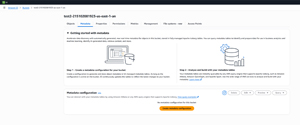 [Click on image for larger view.] Figure 1: Click on the Create Metadata Configuration Button. (source: AWS).
At this point, you will be taken to the Create Metadata Configuration screen. Scroll down to the bottom and you will see the Annotation Table section. Set the Configuration Status option to Enabled and choose how you want to handle the associated IAM role, as shown in Figure 2. When you are done, click on the Create Metadata Configuration button.
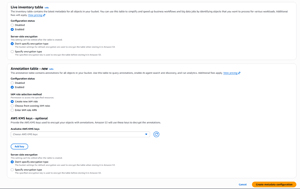 [Click on image for larger view.] Figure 2: Enable Annotations and Click the Create Metadata Configuration Button. (source: AWS).
Creating an Annotation
Open the bucket for which you just enabled annotations and then go to the Upload screen. Expand the Properties section and take a look at the available options. As you can see in Figure 3, there are options for specifying tags and adding metadata, but there is no option for adding an annotation. The reason for this is that annotations have to be added after the file is uploaded. If you are annotating data in bulk, then it's best to handle this process programmatically, but you can use the GUI for annotations if you like.
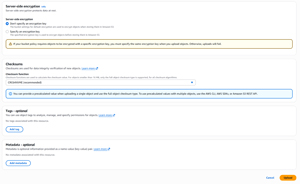 [Click on image for larger view.] Figure 3: There Is No Option to Annotate a File That You Are About to Upload. (source: AWS).
If you want to manually annotate a file by using the GUI, then click on a file within the bucket. Make sure that the Properties tab is selected and then scroll to the bottom of the screen. Locate the Annotations section, shown in Figure 4, and click the Add Annotation button.
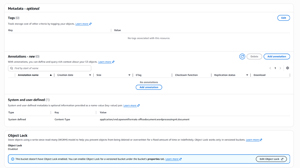 [Click on image for larger view.] Figure 4: Click the Add Annotation Button. (source: AWS).
At this point, you will be prompted to enter a name for your annotations and to select and upload a text file containing your annotations. You can structure this file in JSON format if you want to, but you can also structure the annotations as plain text. The only real requirements are that your text file must be less than 1 MB in size (which means that annotations can be quite large) and that the file adheres to UTF-8 format.
When you are done, you can look at the Annotations section to confirm that your annotations have indeed been attached to the object, as shown in Figure 5.
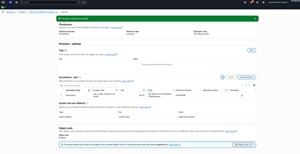 [Click on image for larger view.] Figure 5: My Annotations Have Been Added to the Object in My S3 Bucket. (source: AWS).
About the Author
Brien Posey is a 22-time Microsoft MVP with decades of IT experience. As a freelance writer, Posey has written thousands of articles and contributed to several dozen books on a wide variety of IT topics. Prior to going freelance, Posey was a CIO for a national chain of hospitals and health care facilities. He has also served as a network administrator for some of the country's largest insurance companies and for the Department of Defense at Fort Knox. In addition to his continued work in IT, Posey has spent the last several years actively training as a commercial scientist-astronaut candidate in preparation to fly on a mission to study polar mesospheric clouds from space. You can follow his spaceflight training on his Web site.