AWS Step-by-Step
What to Do When You Can't Connect to an EC2 Instance
One of the more frustrating problems that can sometimes occur in an AWS EC2 environment is that of attempting to connect to an instance only to receive an error stating that, "your instance encountered an error and has closed the connection. Try again or contact customer support."
One of the things that I have learned during my 30+ years of working in IT is that if an error message is generic and completely unhelpful, it usually means that there are any number of things that could potentially be causing the problem. My observation does not hold true in every situation, but it does seem to be true more often than not. In this case for example, the error message does not tell you anything about what actually caused the problem or how to fix it, hinting strongly that the problem might stem from numerous potential underlying causes.
Most of the time, a message stating that your instance has encountered an error and has closed the connection points to some sort of health problem with either the instance itself or with the instance's operating system. That being the case, the first thing that I recommend doing is opening the EC2 dashboard and then locating the instance within the list of instances. Upon locating the instance, take a look at the Status Checks column to see if the status checks have all passed, as shown in Figure 1.
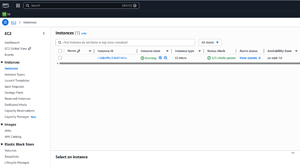 [Click on image for larger view.] Figure 1: Make Sure That the Status Checks Column Indicated That All Checks Have Passed.
If any of the status checks have failed, then I recommend trying to reboot the instance. You may occasionally find that a simple reboot will fix the problem. If not though, there are several things that can cause the status checks to fail. In fact, these same conditions can lead to the "your instance encountered an error" message, even if the status checks do not yet reflect the problem.
The Operating System Failed to Boot
A status check error can occur if the instance's operating system fails to boot. There are various online discussions on how best to address such an issue. In my own experiences, I have seen at least a couple of situations in which I was able to wait for half an hour or so and then something timed out, the operating system booted, and I was able to log in and fix the problem. In other situations, I had no choice but to terminate and recreate the instance.
Volume Mount Problems
You can also run into similar problems if the instance fails to mount the underlying EBS storage that it depends on. You can get a feel for whether storage might be an issue by clicking on the instance and then selecting the Storage tab on the following screen. This tab will show you which EBS volumes the instance is using, as shown in Figure 2. With the volume IDs in hand, you can go to the Volumes tab and begin investigating the volume health.
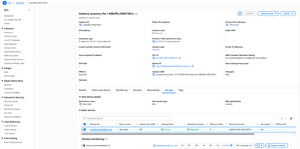 [Click on image for larger view.] Figure 2: The Storage Tab Tells You Which EBS Volumes an Instance Is Using.
The Instance Is Overworked
Another reason why you might not be able to connect to an instance is that the instance's resources have been depleted. The instance might, for example, be using all of its CPU or memory resources. Similarly, the instance's boot volume may be full.
If you suspect that the instance may be suffering from resource depletion, click on the instance and then select the Monitoring tab. This will cause the console to display several charts outlining the instance's performance, as shown in Figure 3.
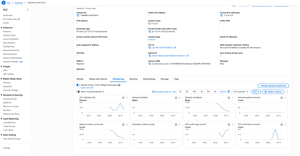 [Click on image for larger view.] Figure 3: The Monitoring Tab Charts the Instance's Performance.
In many cases, the charts shown in the figure will make it somewhat obvious if there is a resource bottleneck. However, if you look closely at the figure, you will notice that there is now an Investigate With AI link that you can use to investigate performance problems more easily.
Finally, failures can occur as a result of a kernel level error within the instance's operating system or a lack of network connectivity (which will likely be reflected by the network related charts on the Monitoring tab).
If you have thus far been unable to find the problem, then the next thing that I would recommend doing is to click on the Actions button, then click on Monitor and Troubleshoot, followed by Get System Log. This will cause AWS to display a low-level log that may help you to more easily pinpoint the problem, as shown in Figure 4.
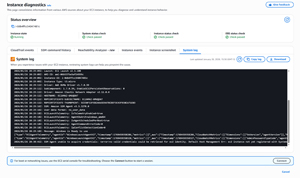 [Click on image for larger view.] Figure 4: The System Log Can Sometimes Be Useful in Troubleshooting an Instance.
About the Author
Brien Posey is a 22-time Microsoft MVP with decades of IT experience. As a freelance writer, Posey has written thousands of articles and contributed to several dozen books on a wide variety of IT topics. Prior to going freelance, Posey was a CIO for a national chain of hospitals and health care facilities. He has also served as a network administrator for some of the country's largest insurance companies and for the Department of Defense at Fort Knox. In addition to his continued work in IT, Posey has spent the last several years actively training as a commercial scientist-astronaut candidate in preparation to fly on a mission to study polar mesospheric clouds from space. You can follow his spaceflight training on his Web site.