AWS Step-by-Step
Cleaning Up from an Agentless VMware Migration to AWS
When it comes to migrating virtual machines to the AWS cloud, the process has usually involved installing an Application Migration Service agent onto the virtual machine. This agent then handles the virtual machine migration process, thereby allowing you to move forward with migration testing. Of course, the disadvantage to using this method is that it can be extremely labor intensive if you need to migrate a large number of virtual machines.
As an alternative, Amazon has made it so that those who host virtual machines within a VMware vCenter environment can perform an agentless migration. This process involves creating a special purpose Linux virtual machine whose purpose is to run the vCenter client. This client handles all of the communications between the vCenter environment and the AWS Application Migration Service.
I recently worked through such a migration, but found that the AWS documentation does not contain any instructions for cleaning up the Application Migration Service once the migration is done. Following my migration, I deleted the vCenter Client virtual machine, but was left with an error message in the Application Migration Service dashboard. This error message, which you can see in Figure 1, indicates that there have been no recent communications from the vCenter Client. The problem is that this message does not go away. This isn't necessarily an issue if you never plan on using the Application Migration Service again, but if you do have future migration plans, it would be nice to be able to reset the dashboard in preparation for the next migration.
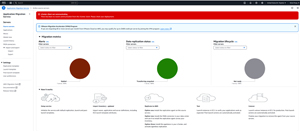 [Click on image for larger view.] Figure 1: This Error Message Does Not Go Away by Itself.
Fortunately, I have figured out a way to make the error message go away. The instructions that I am about to give you assume that you have already deleted the vCenter Client virtual machine.
The first step in the process is to disconnect any remaining source servers. Simply select the source servers and then choose the Disconnect option from the Actions menu. Keep in mind that disconnecting a source server essentially means that you won't be migrating it to AWS.
Once all of the source servers are disconnected, the next step is to archive any disconnected source servers. Again, just select the servers and then select the Mark as Archived command from the Actions menu, as shown in Figure 2. You should now see the source server disappear from the list.
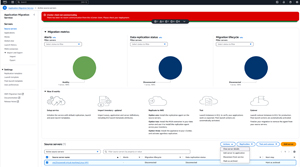 [Click on image for larger view.] Figure 2: You Will Need to Archive Any Disconnected Source Servers.
Now that all of your source servers have been disconnected and archived, you are going to need to do some work from the AWS CLI. If you don't have the AWS CLI installed, you can use it through your browser. In either case, you will need to be logged in using an account with permission to modify the Application Migration Service.
Once you open the AWS CLI terminal, enter the following command:
aws mgn describe-source-servers --region us-east-1
This command will cause AWS to display all of the available details for your source servers. You will notice that I have set the region to us-east-1, but you will need to instead specify the region that you are using.
The important thing to keep in mind is that even though your source servers have been archived, they have not been deleted. The command above should be able to retrieve the details for all of your source servers. If you have an excessive number of source servers and need to filter the list, you can find the full command reference at this AWS CLI documentation page.
You can see what the command's output looks like in Figure 3.
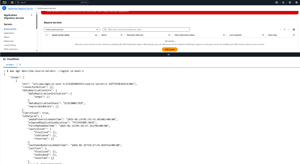 [Click on image for larger view.] Figure 3: This Is How You Obtain Information About Your Source Servers.
If you look closely at the figure above, you will notice that only one source server is being displayed. There seems to be a bug in the console, causing it to display incomplete information. The way that I got around this problem was by holding down the Enter key until all of the details for each source server were displayed.
Once all of the virtual machine information is displayed, search through the list for a virtual machine that you know for sure was hosted on your VMware server (remember, some of the data could be from previous migrations). Once you have done so, you will need to locate the vCenter ID for that virtual machine. The vCenter ID will start with VCC-. You can see an example of this in Figure 4.
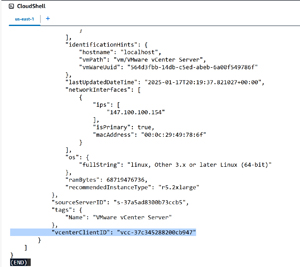 [Click on image for larger view.] Figure 4: Find the Virtual Machine's vCenter ID.
Now that you know the vCenter ID, open another AWS CLI tab and enter this command:
aws mgn delete-vcenter-client --vcenter-client-id <vcc-????????????>
You will need to replace the sample VCC within the command above with your actual vCenter client ID. For example, my vCenter client ID was vcc-37c345288200cb947, so I used this command:
aws mgn delete-vcenter-client --vcenter-client-id vcc-37c345288200cb947
You can see what the command looks like in Figure 5. As you can see in the figure, there is no visible output. Incidentally, you can find the command reference at this AWS CLI documentation page.
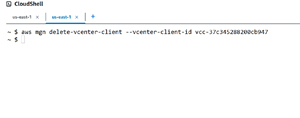 [Click on image for larger view.] Figure 5: This Is the Command Used to Get Rid of the Error Message.
When you enter this command, the error message won't instantly disappear. However, if you click away to another AWS service and then go back to the Application Migration Service, you should see that the error message is gone.
About the Author
Brien Posey is a 22-time Microsoft MVP with decades of IT experience. As a freelance writer, Posey has written thousands of articles and contributed to several dozen books on a wide variety of IT topics. Prior to going freelance, Posey was a CIO for a national chain of hospitals and health care facilities. He has also served as a network administrator for some of the country's largest insurance companies and for the Department of Defense at Fort Knox. In addition to his continued work in IT, Posey has spent the last several years actively training as a commercial scientist-astronaut candidate in preparation to fly on a mission to study polar mesospheric clouds from space. You can follow his spaceflight training on his Web site.