AWS Step-by-Step
Tracking Down Orphaned AWS Security Groups
When you create a new EC2 instance, the Launch Instances screen's default behavior is to create a new security group. As such, it's easy to accidentally create a new security group to go along with a new instance, even if you hadn't planned to do so. Additionally, when you terminate an instance, AWS does not remove the instance's security group, because there is a chance that the security group might be in use by other resources. The end result is that over time, you can accumulate a large collection of orphaned security groups.
So how can you figure out which security groups have been orphaned and are safe to get rid of? Unfortunately, there is no built-in report that you can run to find orphaned security groups. Even so, there are at least a couple of ways that you can get the job done.
Before I share these options with you, I need to quickly point out that for the purposes of this article, I am making the assumption that security groups are only being used by EC2 instances. In the real world, it's always possible that other services, such as RDS, might be using a security group. Therefore, my recommendation would be to use the techniques that I am about to show you as a starting point, but take the time to make sure that no other resources are using an otherwise orphaned security group before you delete it.
Using the AWS Console
Unfortunately, there is no quick and easy way that I know of to use the console to figure out which security groups are no longer being used. That doesn't mean that you can't use the console. It simply means that the process will likely be tedious and time consuming, maybe even totally impractical.
To get started, open the EC2 console and click on the Security Groups container, as shown in Figure 1. As you look at the screen capture, you will notice that the list includes a column displaying the inbound rule count. If the rule count is 0, then there is a good chance that the security group is not being used. Even though the absence of rules is not a 100% guarantee that the security group is unused, the odds are definitely in your favor. Security groups with no rules are a good place to begin the evaluation process.
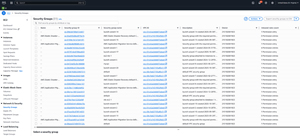 [Click on image for larger view.] Figure 1: Some security groups might not have any associated rules.
Clicking on a security group will take you to a details screen. However, this details screen will not provide you with the full picture. A security group's details screen will provide information about the inbound and outbound rules, and it will tell you about any VPC associations that might exist, but the screen will not tell you whether the security group is being used by an EC2 instance or by other resources.
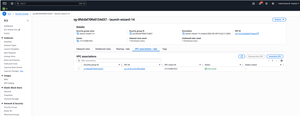 [Click on image for larger view.] Figure 2: A security group's details screen will tell you if a security group is associated with a VPC, but it will not tell you if the security group is being used by an instance.
The only real option for using the console to tell which security groups are in use is to look at your list of instances. As you can see in Figure 3, this screen will tell you the name of the security group that each instance is using. This screen should suffice if you only have a small number of instances, but going through a large collection of instances in this way is completely impractical.
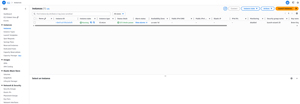 [Click on image for larger view.] Figure 3: The Instances screen tells you which security group each instance is using.
Using the AWS CLI
So as you have seen, the AWS console is not the best tool for figuring out which security groups have been orphaned. However, you can use the AWS CLI instead. Before doing so, you will need to install the AWS PowerShell module. On a Windows system, the command for doing so is: Install-Module -Name AWSPowerShell. You can find instructions for other operating systems here:
Here are the commands that I am using (on Windows) to get a list of unused security groups. Remember, this code only checks to see if the security groups are being used by EC2 instances. The resulting list is also only applicable for the current region.
$UsedSecurityGroups = (Get-EC2Instance | Select-Object -ExpandProperty Instances).SecurityGroups
$UniqueSecurityGroups = $UsedSecurityGroups | Select-Object GroupName -unique
$SecurityGroups = Get-EC2SecurityGroup | Select-Object GroupName
$UnusedSecurityGroups = $SecurityGroups | Where-Object { $_ -notin $UniqueSecurityGroups}
    $UnusedSecurityGroups = $SecurityGroups | Where-Object {
        $_.GroupName -notin $UniqueSecurityGroups.GroupName
    }
The first command gets a list of all of the security groups being used by EC2 instances. This information is stored in a variable called $UsedSecurityGroups. Since it is likely that some security groups are being used by more than one instance, I have created another variable called $UniqueSecurityGroups. This variable stores a single listing for each security group that is in use.
Next, I am creating yet another variable. This one is called $SecurityGroups. This variable stores a list of all of the security groups that exist within the region. Finally, I am creating a variable called $UnusedSecurityGroups. This variable stores a list of all the security groups that exist within the $SecurityGroups list, but that are not present on the list of security groups being used by instances. You can see what the output looks like in Figure 4.
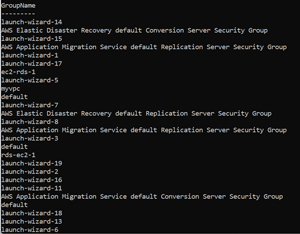 [Click on image for larger view.] Figure 4: Entering
 $UnusedSecurityGroups produced this list
About the Author
Brien Posey is a 22-time Microsoft MVP with decades of IT experience. As a freelance writer, Posey has written thousands of articles and contributed to several dozen books on a wide variety of IT topics. Prior to going freelance, Posey was a CIO for a national chain of hospitals and health care facilities. He has also served as a network administrator for some of the country's largest insurance companies and for the Department of Defense at Fort Knox. In addition to his continued work in IT, Posey has spent the last several years actively training as a commercial scientist-astronaut candidate in preparation to fly on a mission to study polar mesospheric clouds from space. You can follow his spaceflight training on his Web site.