AWS Step-by-Step
Recovering From an Accidental Security Group Modification
One of the more commonly occurring problems with regard to AWS EC2 involves losing access to instances as a result of an accidental security group modification. As an example, an administrator might modify a security group so that it no longer supports inbound RDP (Windows) or SSL (Linux) traffic. Initially such a problem might go unnoticed until admins find themselves unable to log into various instances. Fortunately, there are a few different options for fixing the problem.
Using AWS Config
AWS Config is one of the best tools for dealing with an unintended security group modification. The catch however, is that in order for the technique that I am about to show you to work, you are going to need to enable AWS Config before a problem occurs. If you are already dealing with an unwanted security group modification, then skip ahead and I will show you another way to fix the problem.
To get started with AWS Config, log into AWS and open the AWS Config console. If you have never used AWS Config before, you will need to click the Get Started button.
Next, select the console's Settings tab and then click the Edit button found in the Data and Delivery section. By default, AWS Config will store all recorded data for a period of seven years, but you can set a custom retention period for the recordings. The minimum retention period is 30 days. You will also need to choose which S3 bucket you want to use for storing recorded data, as shown in Figure 1.
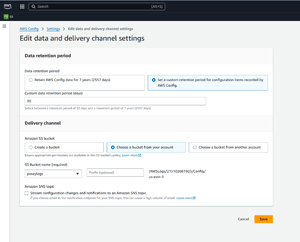 [Click on image for larger view.] Figure 1: You can specify a custom retention period.
It's worth noting that if you choose to save data to an existing bucket, AWS Config will need permission to access the bucket. As an alternative, you can choose the Create a Bucket option, which will cause AWS Config to make a new S3 bucket with the required permissions already in place. When you are done, click the Start Recording button, followed by the Confirm button. This will cause AWS Config to begin recording your AWS activities. It can take several minutes for recordings to begin showing up in the console.
So now, let's assume that AWS Config is recording all of the AWS activities and that you suspect that an accidental change has been made to an AWS security group. To figure out what happened and correct the problem, open the AWS Config console and click on Resources. The Resource Inventory view often shows a lot of data. As such, it can be helpful to filter the view so that only security group related resources are shown. To do so, just select AWS EC2 Security Groups from the Resource Type drop down.
The next thing that you will need to do is to click on the security group that you think may have been modified. When you do, you will see a list of the events tied to the resource, as shown in Figure 2. Keep in mind that this list is not populated in real time. If the change occurred within the last ten minutes or so, you may have to keep refreshing your browser until the event eventually shows up.
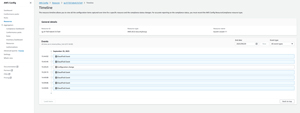 [Click on image for larger view.] Figure 2: This is what the list of events looks like.
If a particular event shows up as a configuration change, then you can just click on the event and AWS will show you a JSON diff view, which is essentially a before and after comparison through which you can see exactly what has changed. Sometimes though, events are simply listed as CloudTrail events. When that happens, you can click on the event, followed by the CloudTrail link. This opens the event details in CloudTrail, thereby allowing you to see what has changed. Figure 3 shows what the event page looks like, and in Figure 4, you can see the portion of the record that shows the change that has been made.
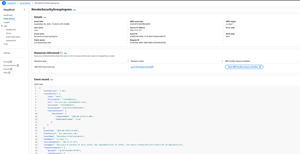 [Click on image for larger view.] Figure 3: This is what an event page looks like.
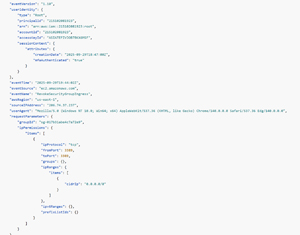 [Click on image for larger view.] Figure 4: This JSON record indicates that access to Port 3389 has been removed.
Native Cloud Trail Events
Earlier I mentioned that there were some diagnostic and recovery options available, even if you haven't enabled AWS Config. One such option involves using native CloudTrail logs. To use these logs, just open the CloudTrail console and set the filter to look at AWS EC2 Security Groups. As you can see in Figure 5, the first event on the list is RevokeSecurityGroup. This event corresponds to the RDP rule being removed from the security group. Clicking on the event displays the same screen that was shown in Figure 3.
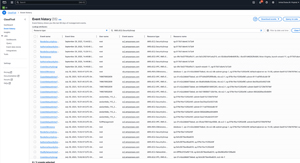 [Click on image for larger view.] Figure 5: This is the CloudTrail Event History.
The main advantage to using AWS Config for diagnosing accidental security group modifications is that in at least some cases, the console will show you a before / after view that makes it really easy to figure out what has changed. AWS Config also provides you a convenient, resource specific time line that makes it easy to locate the event that you are looking for. However, if you haven't enabled AWS Config, you can access similar data through CloudTrail. CloudTrail just presents the information in a different way than AWS Config does.
About the Author
Brien Posey is a 22-time Microsoft MVP with decades of IT experience. As a freelance writer, Posey has written thousands of articles and contributed to several dozen books on a wide variety of IT topics. Prior to going freelance, Posey was a CIO for a national chain of hospitals and health care facilities. He has also served as a network administrator for some of the country's largest insurance companies and for the Department of Defense at Fort Knox. In addition to his continued work in IT, Posey has spent the last several years actively training as a commercial scientist-astronaut candidate in preparation to fly on a mission to study polar mesospheric clouds from space. You can follow his spaceflight training on his Web site.