AWS Step-by-Step
Using Systems Manager to Find Unmanaged EC2 Instances
Systems Manager can be a really helpful tool for keeping your EC2 instances healthy. In order to do so however, instances have to be managed by Systems Manager. Unfortunately, there are any number of problems that can keep the Systems Manager agent from running, thereby making management impossible for the instance in question. Thankfully, Systems Manager is able to automatically identify instances that are not actively being managed, and it can even correct certain agent related issues on those instances.
To get started with locating unmanaged instances, log into AWS using your delegated administrator account and open the Systems Manager console. Now, select the Diagnose and Remediate tab and click the Get Started button. If this is the first time that you have used Systems Manager, then you will need to complete a brief organizational setup process. As you can see in Figure 1, this process basically consists of selecting the regions that you want to manage and the features that you want to enable. When you are done, click the Submit button.
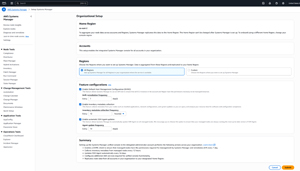 [Click on image for larger view.] Figure 1: You may need to complete an initial setup process.
Once the initial setup process has been completed, go ahead and click on the Diagnose and Remediate tab once again. Here you will see a brief summary of your organization. As you can see in Figure 2, this screen displays the number of deployment issues that need to be addressed and the number of unmanaged EC2 instances that have been detected.
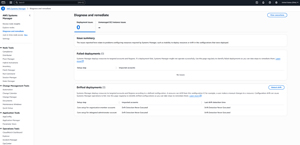 [Click on image for larger view.] Figure 2: The console currently reflects 0 deployment issues.
The important thing to know about this screen is that the numbers that you see are not updated dynamically. In other words, the numbers reflect the state of your EC2 environment at a particular point in time (the time when the most recent diagnostic scan was performed), but are not current unless nothing has changed since the time of the scan.
To determine how many EC2 instances are currently unmanaged, click on the portion of the display that says Unmanaged EC2 Instance Issues (the area at the top of the console where you would expect to see a number). This causes AWS to display the screen that is shown in Figure 3.
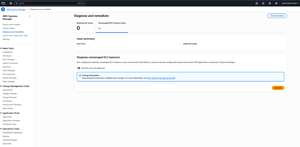 [Click on image for larger view.] Figure 3: You can perform a scan by clicking on the Execute button.
As you can see in the figure, you can perform a scan by clicking on the Execute button. Before you do however, there are two things that are worth considering. First, scanning for unmanaged EC2 instances does incur charges. As you can see in the figure, the console warns you about these charges and provides you with a link that you can click on if you want to view the current pricing.
The second thing that you need to know is that while it can be useful to run a manual scan, you also have the option of configuring the scanning process to occur on a scheduled basis. To do so, you need only to set the Schedule Recurring Diagnosis switch to the On position and then configure the schedule.
Whether you schedule a scan or perform the scan manually, the scan can take a while to complete. However, the console contains a View Progress button that you can use to monitor the current scan's progress.
When the scan eventually completes, you should see the console refresh and display the number of unmanaged EC2 instances that have been detected, as shown in Figure 4.
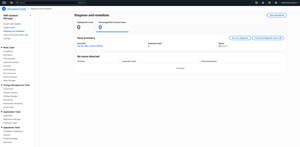 [Click on image for larger view.] Figure 4: The number of unmanaged instances is now being reported.
Hopefully there won't be any issues, but if any problems are found, those will be displayed in the section at the bottom of the screen. Not every potential issue can be automatically diagnosed. As an example, if there were some sort of problem with an instance's operating system, you might not see a detailed description of the issue. However, there are some major categories of problems that are reported.
As an example, the Systems Manager will report issues related to the security group configuration and HTTPS communications. If the instance's security group or the VPC's security group does not allow outbound communications on port 443, then that issue will be reported in the console.
An issue will also be reported if DNS host names are not properly configured for the VPC. If such an issue is detected, then Systems Manager will try to automatically enable the EnableDNSSupport and EnableDNSHostnames attributes for the VPC.
The Systems Manager will also report an issue if the VPC endpoint associated with an instance is configured incorrectly. If that happens, then an automated runbook will attempt to automatically create the missing endpoint and associate it with a subnet within the VPC
About the Author
Brien Posey is a 22-time Microsoft MVP with decades of IT experience. As a freelance writer, Posey has written thousands of articles and contributed to several dozen books on a wide variety of IT topics. Prior to going freelance, Posey was a CIO for a national chain of hospitals and health care facilities. He has also served as a network administrator for some of the country's largest insurance companies and for the Department of Defense at Fort Knox. In addition to his continued work in IT, Posey has spent the last several years actively training as a commercial scientist-astronaut candidate in preparation to fly on a mission to study polar mesospheric clouds from space. You can follow his spaceflight training on his Web site.