AWS Step-by-Step
Using AWS Systems Manager to Manage Windows Instances, Revisited
In a recent article, I explained that you can use the AWS Systems Manager as an alternative to establishing an RDP connection to your virtual machine instances. This gives you the ability to manage virtual machine instances at scale using PowerShell scripts. In some cases, it also means that you can avoid opening Port 3389, because RDP based management becomes unnecessary. In my original article, I talked about how to execute PowerShell commands on a virtual machine instance without relying on RDP connectivity. However, this really only represents the beginning of what you can do using the AWS Systems Manager. As such, I wanted to revisit the topic and talk about some of the other ways that you can use the Systems Manager to manage your Windows instances.
Collective Instance Management
As previously noted, you can use the Systems Manager to simultaneously execute a PowerShell command on multiple virtual machine instances. However, this is not the only bulk management action that you can perform from within the Systems Manager's Fleet Manager.
As you can see in Figure 1, the Fleet Manager allows you to select multiple virtual machine instances and then select an action from the Node Actions drop down. The available tools give you the ability to execute Run commands, patch the selected nodes, or add tags to the nodes. You can also use this same menu to establish multiple remote desktop connections using a single management action. As you can see in Figure 2 however, you are limited to establishing four concurrent remote desktop sessions.
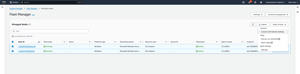 [Click on image for larger view.]Figure 1: The Fleet Manager Allows You to Perform Some Management Actions in Bulk.
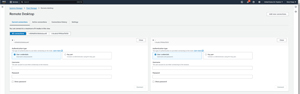 [Click on image for larger view.]Figure 2: The Fleet Manager Allows You to Establish up to Four Simultaneous Remote Desktop Sessions.
Other Management Actions
Having the ability to perform certain management actions at scale is one of the main benefits associated with using the Fleet Manager, but it is not the only benefit. Another benefit is that depending on what you are trying to do, you may be able to use the Fleet Manager to interact with an instance without having to establish a remote desktop session. This not only frees you from the hassles of establishing an RDP connection, it also means that you may be able to avoid opening Port 3389, thereby making your Windows instances more secure.
If you want to manage a specific instance, as opposed to managing instances in bulk, then open the Fleet Manager and click on the instance that you want to manage. This will take you to a screen similar to the one shown in Figure 3.
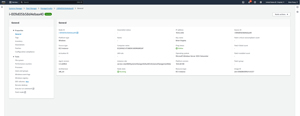 [Click on image for larger view.]Figure 3: The Systems Manager Allows You to Manage a Windows Instance without Using an RDP Session.
As you can see in the figure, the interface is divided into a Properties section and a Tools section. The Properties section allows you to examine the instance's current configuration. This includes checking on things like tags that have been applied, compliance, and patches that have been installed.
The Tools section exposes several different management tools that you can use to manage the instance's operating system through the browser. As an example, clicking on the File System link exposes the instance's file system. As you can see in Figure 4, you can use the Fleet Manager to perform various file system related tasks such as browsing the file system hierarchy, creating folders, deleting, and renaming files.
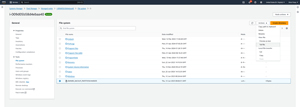 [Click on image for larger view.]Figure 4: You can use the Fleet Manager to interact directly with an instance's file system.
The Fleet Manager can also examine the Windows performance counters, manage local users and groups within the instance, and even list the processes running on the system. The Fleet Manager also gives you an option for launching a new process, as shown in Figure 5.
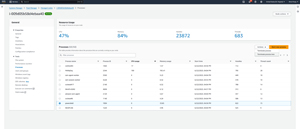 [Click on image for larger view.]Figure 5: The Fleet Manager Allows You to Manage Existing Processes that Are Running on an Instance or to Launch New Processes.
One more capability that I wanted to mention is that you can use the Fleet Manager to check the EBS volumes associated with your instance to make sure that they are healthy and that they have plenty of free space. You can see what this looks like in Figure 6.
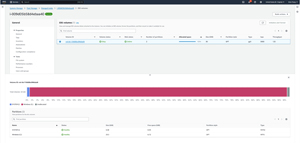 [Click on image for larger view.]Figure 6: You Can Use the Fleet Manager to Make Sure that the Instance's Volumes are Healthy.
So as you can see, the Systems Manager and its Fleet Manager can go a long way toward helping you to manage your Windows instances without the need for an RDP connection. It is worth noting however, that the quality of the management experience will vary based on the instance size. Attempting to use the Fleet Manager to manage a micro sized instance for example, will usually be an extremely slow process. Occasionally, the Fleet Manager may even time out while trying to retrieve data or perform a management operation. That being the case, if you find working with the Fleet Manager to be a painfully slow process, then check the Windows performance logs to make sure that your instance has sufficient hardware resources available to support remote management.
About the Author
Brien Posey is a 22-time Microsoft MVP with decades of IT experience. As a freelance writer, Posey has written thousands of articles and contributed to several dozen books on a wide variety of IT topics. Prior to going freelance, Posey was a CIO for a national chain of hospitals and health care facilities. He has also served as a network administrator for some of the country's largest insurance companies and for the Department of Defense at Fort Knox. In addition to his continued work in IT, Posey has spent the last several years actively training as a commercial scientist-astronaut candidate in preparation to fly on a mission to study polar mesospheric clouds from space. You can follow his spaceflight training on his Web site.