AWS Step-by-Step
Creating an AWS Systems Manager Delegated Administrator Account
In order to use most to AWS Systems Manager's capabilities, Amazon requires you to create a delegated administrator account. However, there isn't a lot of guidance given, and the process of provisioning the required account and gaining access to Systems Manager can be somewhat confusing. That being the case, I wanted to walk you through the process of getting everything set up.
A delegated administrator account is essentially just an account that is used for specific administrative purposes. Rather than logging in using the Root account, which is risky, Amazon prefers that you use accounts with more limited capabilities. This lessens the chances of your AWS organization being completely taken over in the event of an account compromise attack.
You can designate a delegated administrator for Systems Manager by opening the Systems Manager console, clicking on Settings, and then specifying the account that you want to use. You can see what this looks like in Figure 1.
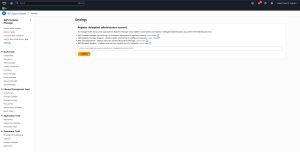 [Click on image for larger view.] Figure 1: Systems Manager requires you to register a delegated administrator account.
While this probably seems simple enough, Amazon places a couple of restrictions on this process. First, you can't set the delegated administrator account to be the root account, nor can you delegate the account that you are currently signed in with. It has to be a separate account. Second, you can't just enter the account name. You must instead enter the account ID, which is a number.
That second rule is extremely important, because it determines the type of account that you are going to need to use. After all, IAM user accounts do not have account IDs associated with them. As such, you are going to need to use an organization account instead.
To create an organization account, open the IAM Identity Center and click on the AWS Organizations link. When the AWS Organizations page opens, make sure that the AWS Accounts tab is selected and then click the Add an AWS Account button, shown in Figure 2.
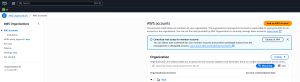 [Click on image for larger view.] Figure 2: Click the Add an AWS Account button to create an organization account.
At this point, you will be taken to the Add an AWS Account page. As you can see in Figure 3, you are given a choice between creating a new AWS account and inviting an existing account. Make sure that you select the option to create an AWS account. Upon doing so, you will need to provide a name for the account, the email address that belongs to the account owner, and the name of the IAM role that you want to associate with the account. If you don't know the IAM role name, then just go with the default option.
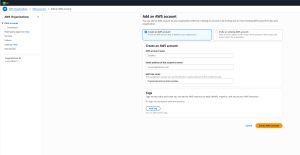 [Click on image for larger view.] Figure 3: This is the screen used to create an AWS account.
Once you have finished creating the new account, it should show up on the list of AWS accounts, although you may have to refresh the browser before you will see the new account. At this point, you will need to click on the account to access the account details screen. Here you will need to locate the account ID (it should be just to the right of the account name). Make note of the account ID and then go back to the Systems Manager page and enter the account ID into the field shown in Figure 1. Your delegated account should now be able to manage Systems Manager.
There is just one more obstacle that you will need to overcome. If you take a look back at Figure 3, you will notice that the account creation interface does not provide an option for entering a password. So how do you log into the account?
To use the new account, open the AWS console and use the Root User sign in option. When prompted, enter the email address associated with your newly created account. Complete any required "I am not a robot" challenges and you should eventually arrive at the password screen. Since there is not currently a password associated with the account, click on the Forgot Password link. After jumping through a couple of hoops to prove your identity, you will be allowed to reset your password, log into the console, and begin managing Systems Manager.
About the Author
Brien Posey is a 22-time Microsoft MVP with decades of IT experience. As a freelance writer, Posey has written thousands of articles and contributed to several dozen books on a wide variety of IT topics. Prior to going freelance, Posey was a CIO for a national chain of hospitals and health care facilities. He has also served as a network administrator for some of the country's largest insurance companies and for the Department of Defense at Fort Knox. In addition to his continued work in IT, Posey has spent the last several years actively training as a commercial scientist-astronaut candidate in preparation to fly on a mission to study polar mesospheric clouds from space. You can follow his spaceflight training on his Web site.