AWS Step-by-Step
Protecting Your S3 Buckets with MFA Delete
Any time that you place data into an S3 bucket, there is a risk that the data will be deleted, either accidentally or maliciously. Fortunately, Amazon provides a tool called MFA Delete that you can use as an extra layer of security to protect your S3 data against deletion.
MFA Delete is exactly what it sounds like -- Multifactor Authentication Delete. As the feature's name suggests, MFA Delete makes it so that you have to complete an MFA challenge prior to permanently deleting an object (or a version of an object). That way, if your account credentials were to become compromised, you don't have to worry about someone using those stolen credentials to delete the data from your S3 buckets.
Just to be clear, enabling the MFA Delete feature is different from configuring an AWS account to require multifactor authentication. The MFA Delete feature is specific to the S3 service and only serves to safeguard your data.
When you enable MFA Delete, any attempt at permanently deleting an object will require you to complete an MFA prompt. An MFA prompt is also triggered if you try to suspend versioning on an S3 bucket. However, you won't be required to complete an MFA challenge when performing other common actions, such as uploading a file to a bucket or initially enabling versioning.
Before you can enable MFA Delete on a bucket, you must turn on versioning for the bucket. For those who might not be familiar with versioning, versioning makes it so that when you make changes to an object that is stored within an S3 bucket (such as editing a file), a previous version of the object is retained. That way, you can always retrieve earlier versions of your objects. It is important to note that because versioning causes multiple versions of your objects to be retained, enabling versioning will increase the storage costs associated with the bucket.
To do so, log into the AWS console and then open the S3 service. Now, click on your bucket and then select the Properties tab, which is shown in Figure 1.
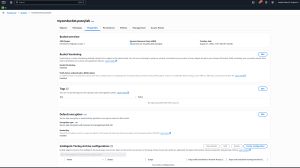 [Click on image for larger view.] Figure 1: You can find the option to enable versioning on the bucket's Properties tab.
Now, click the Edit button located within the Bucket Versioning section. As you can see in Figure 2, all you have to do now is to choose the Enable option and then click Save Changes.
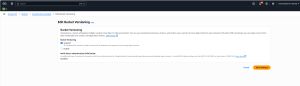 [Click on image for larger view.] Figure 2: Choose the option to enable versioning.
If you are enabling versioning for an S3 bucket, then it's usually a good idea to create a corresponding lifecycle rule. Doing so allows you to expire old versions of objects so that they won't be retained indefinitely, thereby needlessly driving up your storage costs.
To create a lifecycle rule that automatically expires non-current object versions, select the Management tab and then click on the Create Lifecycle Rule button. When prompted, enter a name for the rule that you are creating. You will also need to choose whether you want to limit the rule's scope or if you want the rule to apply to all of the objects that are stored within the bucket.
If your goal is to delete non-current versions of objects, then select the Permanently Delete Noncurrent Versions of Objects checkbox, as shown in Figure 3. Upon doing so, you will be prompted to enter the number of days after which, objects will be considered to be non-current. For example, if you want to delete object versions after a year, you would enter 365.
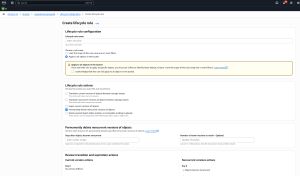 [Click on image for larger view.] Figure 3: Select the Permanently Delete Noncurrent Versions of Objects checkbox.
With the bucket set up, it is time to enable MFA Delete. If you look back at Figure 2, you will notice that although there is a message telling you that MFA Delete is disabled, there is not a mechanism to enable it. The reason for this is that you can only enable MFA Delete from the command line environment.
The exact command that you will need to use is going to vary depending on whether you are using a physical or a virtual MFA device. To enable MFA Delete for use with a physical MFA device, you would use this command:
aws s3api put-bucket-versioning --bucket amzn-s3-demo-bucket1 --versioning-configuration Status=Enabled,MFADelete=Enabled --mfa "SerialNumber 123456"
Here is the command for enabling MFA Delete for use with a virtual device:
aws s3api put-bucket-versioning --bucket amzn-s3-demo-bucket1 --versioning-configuration Status=Enabled,MFADelete=Enabled --mfa "arn:aws:iam::account-id:mfa/root-account-mfa-device 123789"
In both cases, you will need to adapt the command to your environment by supplying the name of your bucket instead of the generic bucket name that is used in the command right now. You will also need to enter any information that is specific to your MFA environment, such as the device serial number. For more information, you can consult the full documentation.
About the Author
Brien Posey is a 22-time Microsoft MVP with decades of IT experience. As a freelance writer, Posey has written thousands of articles and contributed to several dozen books on a wide variety of IT topics. Prior to going freelance, Posey was a CIO for a national chain of hospitals and health care facilities. He has also served as a network administrator for some of the country's largest insurance companies and for the Department of Defense at Fort Knox. In addition to his continued work in IT, Posey has spent the last several years actively training as a commercial scientist-astronaut candidate in preparation to fly on a mission to study polar mesospheric clouds from space. You can follow his spaceflight training on his Web site.